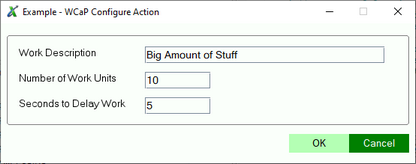
When the Configure action is selected for this tool from the Contributed Tools list, the configPerformed() method in the listener is called.
do_ConfigPerformed:

	local oCommon

	oCommon=new("ecCommon")
	oCommon'ConfigGuiDisplay()
	oCommon'processPanel(cConfigUI$, cConfigTitle$)
	drop object oCommon

return
The user interface class inherits the standard Plug-in class ecCommonUI which provides base User Interface functionality. A NOMADS panel must be created in a library file and the supporting logic added to this class.
When the Run action is selected for this tool from the Contributed Tools list, the do_ActionPerformed() method in the listener called.
do_ActionPerformed:

	enter IExtCommand

	local oCommon

	oCommon=new("ecCommon")
	oCommon'processPanel(cRunUI$, cRunTitle$)
	drop object oCommon

return
The user interface class inherits the standard Plug-in class com.pvx.util.progress which provides a simple progress log window that includes several buttons to allow user interaction as the work progresses. This class requires the child class to implement a do_work() method to perform the required work for the contributed tool and manage the available features of the interface.
The child class interacts with the user interface using the following methods:
- _obj'createLogFile(aNamePfx$) or _obj'createLogFile(aNamePfx$, btnText$)
-
Use this method to create a temporary log file to update during the execution of the
tool; the file will be deleted upon exit of the tool.
- The aNamePfx$ value will be used as the first part of the log file name; use a value to make it easy to associate the log file with the contributed tool.
- When the work is complete, a 'View Log' button will display to allow the user to view the log file; use the btnText$ parameter to override the default text for this button.

When this method is used to create a log file, a 'View Log' button will display when the process is complete. - _obj'enable_cancel()
- Use this method to enable the Cancel button.
- _obj'checkCancel()
- If Cancel has been enabled, the child class must use this method to determine if the user has attempted to cancel the task.
- _obj'disable_cancel()
- If Cancel has been enabled, the child class should use this method during any portion of work that cannot be aborted (such as an update).
- _obj'enable_special(btnText$)
-
Use this method to show and enable the 'Special' button action after the process has
completed. The btnText$ value will be displayed as the text on the button
(must not be longer than 10 characters).
Override the b_special() method to implement an action to perform when the button is clicked. The action can be used to view a detailed log file or special report. - _obj'disable_special()
- Use this method to disable the special button.
- _obj'writeLog(message$) or _obj'writeLog(message$,logFile$)
- Use this method to write the value in the argument message$ to the progress log window. if a logFile$ is specified, the message will also be appended to the file.
- _obj'writeLogFile(message$) or _obj'writeLogFile(message$,logFile$)
- Use this method to write the value in the argument message$ to the specified log file. When the log file is not specified, the value is written to the file created by the _obj'createLogFile() method.
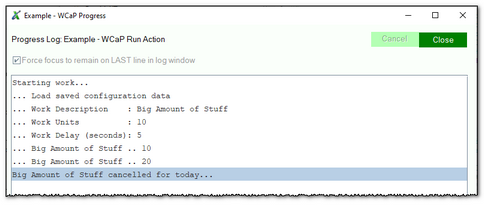
The following image shows the user interface after the user has cancelled the work in progress.
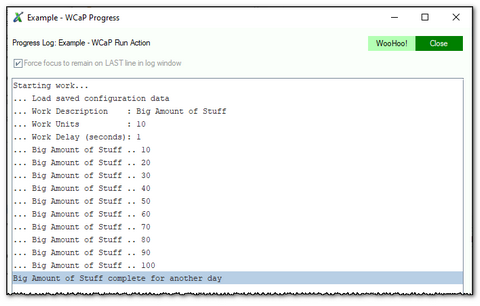
The following image shows the user interface after the user has allowed the work to complete. Notice the WooHoo! button - this button was enabled by calling the _obj'enable_special() method. When the user clicks the button the logic associated with the b_special() method is called.